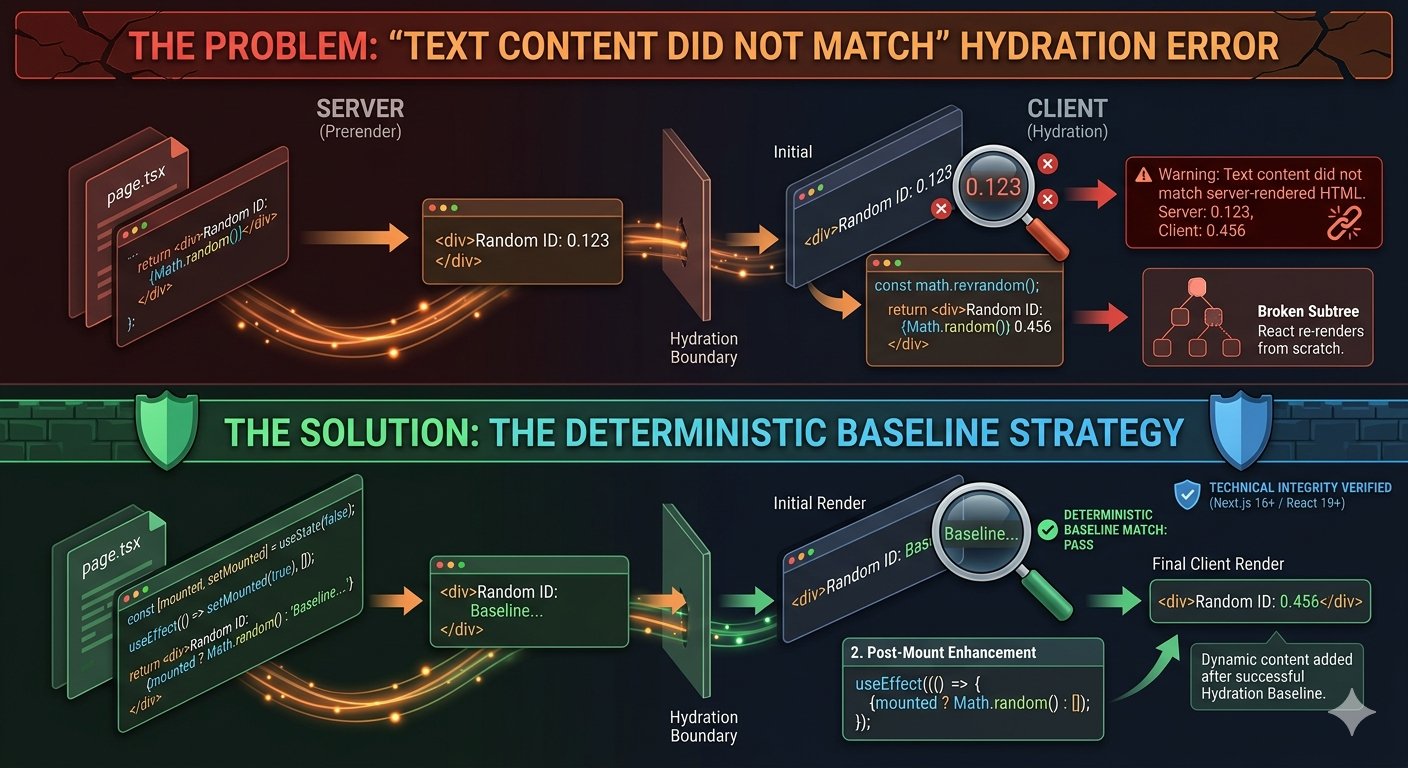
Fixing the 'Text Content Did Not Match' Hydration Error in Next.js 16: The Deterministic Baseline Strategy
The "Text content did not match" hydration error is a persistent thorn in the side of many Next.js developers. If you've spent any significant time building React applications with server-side rendering (SSR), particularly with Next.js (especially since the App Router in v13+), you've almost certainly encountered this warning, often accompanied by a flash of incorrect content or layout shifts. It's not just an annoying console message; it signals a fundamental mismatch between the HTML rendered on the server and the React component tree generated on the client, leading to poor user experience, potential SEO penalties, and performance regressions. This article outlines a robust approach I call the "Deterministic Baseline Strategy" for tackling these errors head-on. It's about proactive design, not just patching symptoms.
Understanding the Hydration Process and the Mismatch
Before diving into solutions, let's quickly recap hydration. In a Next.js application, when a user requests a page, the server renders the initial HTML for that page. This HTML is sent to the browser, allowing for a fast first paint and better SEO because crawlers see fully formed content. Once the browser receives and parses this HTML, React takes over on the client-side. It attempts to "hydrate" the static HTML by attaching event listeners and re-rendering the component tree using JavaScript. The hydration error occurs when React's client-side render produces a different DOM structure or text content than what was initially sent from the server. React compares the server-rendered tree with its client-generated counterpart. If it finds discrepancies, it throws the "Text content did not match" or "Did not expect server HTML to contain a <div> in <div>." warnings. Common culprits for this mismatch include:
- Time-dependent data: `new Date()` will almost certainly differ between server (UTC or server's local time) and client (user's local time).
- Random values: `Math.random()` or UUID generation will produce different values on each render.
- Client-only APIs: Accessing `window`, `localStorage`, `navigator`, or other browser-specific objects during the server render phase.
- Conditional rendering based on client-only state: Components that render differently based on, say, `window.innerWidth` before the client has had a chance to hydrate.
- External data fetching: Inconsistent data between server-side fetch and client-side re-fetch.
Why Common "Fixes" Fall Short
You've probably seen or used some common workarounds. While they can temporarily silence the warnings, they often mask deeper issues or introduce new problems.
1. Using `useEffect` for Client-Only Rendering
This is a widely adopted pattern where you render a placeholder on the server and then, once the component mounts on the client, update its state to display the actual client-specific content.
import { useState, useEffect } from 'react';

function ClientOnlyContent() {
  const [content, setContent] = useState('Loading...');

  useEffect(() => {
    // This runs only on the client after hydration
    setContent(`Client time: ${new Date().toLocaleTimeString()}`);
  }, []);

  return <p>{content}</p>;
}

// In your page or component
// <ClientOnlyContent />
Pros: Simple, effective for truly client-only content.
Cons: Often leads to a "Flash of Unstyled Content" (FOUC) or layout shifts as the content changes post-hydration. The initial server-rendered content is often generic or a loader, which might not be ideal for SEO or user experience for critical elements.
2. `suppressHydrationWarning`
React offers a prop, `suppressHydrationWarning`, that tells it to explicitly ignore hydration mismatches for a specific element and its children.
function CurrentTime() {
  const now = new Date();
  return (
    <p suppressHydrationWarning>
      Current time: {now.toLocaleTimeString()}
    </p>
  );
}
Pros: Quickest way to silence the warning.
Cons: Dangerous. It hides the problem rather than solving it. You're explicitly telling React to proceed even if the DOM trees don't match, which can lead to unexpected behavior, accessibility issues, and make debugging harder down the line. Use this only for minor, known, and truly inconsequential differences, like a single space or character that you're absolutely certain won't break anything.
3. `next/dynamic` with `ssr: false`
Next.js's dynamic imports allow you to load components only on the client-side, effectively opting them out of SSR.
import dynamic from 'next/dynamic';

const ClientSideComponent = dynamic(() => import('./ClientSideComponent'), { ssr: false });

function MyPage() {
  return (
    <div>
      <h1>Server Rendered Content</h1>
      <ClientSideComponent />
    </div>
  );
}
Pros: Guarantees a component is rendered only on the client, useful for components that strictly depend on browser APIs or are very interactive and don't need initial server rendering.
Cons: The component's content will not be present in the initial server-rendered HTML, impacting SEO and initial perceived performance if it's critical content. It also introduces a loading state until the component is hydrated, similar to the `useEffect` approach.
These methods have their place, but they're often reactive or punt the problem down the road. For critical content and a truly robust application, we need a more principled approach.
The Deterministic Baseline Strategy: Core Principles
The Deterministic Baseline Strategy focuses on ensuring that the server *always* renders a predictable, stable, and consistent initial state for any potentially non-deterministic content. The client then refines this baseline *after* hydration. This guarantees a matching DOM tree for React's hydration process, preventing errors and ensuring a smooth user experience. Here are its core principles:
Principle 1: Isolate Non-Deterministic Elements
Identify parts of your UI that inherently produce different output on server vs. client. This is the first and most critical step. Don't guess; analyze your components.
Principle 2: Establish a Server-Rendered Baseline
For these identified elements, ensure the server always renders a predictable, consistent, and ideally meaningful initial state. This baseline should be valid HTML and represent the "least common denominator" or a sensible default.
Principle 3: Client-Side Refinement (Progressive Enhancement)
Update the UI on the client *after* hydration with the true, dynamic, or user-specific content. This happens in a `useEffect` hook or similar client-only lifecycle method.
Principle 4: Type Safety and Consistency
Use TypeScript to enforce the baseline data structures and the client-side updates. This helps maintain consistency and prevents accidental mismatches.
Implementing the Strategy: Practical Examples
Let's walk through common scenarios and apply the Deterministic Baseline Strategy.
Example 1: Time/Date Display
The problem: displaying `new Date().toLocaleTimeString()` will almost always differ between server and client.
The strategy: The server renders a fixed, locale-agnostic representation (e.g., an ISO string or a data attribute). The client reads this baseline and then updates it to the user's local time.
// components/ClientTimeDisplay.tsx
'use client';

import { useState, useEffect } from 'react';

interface ClientTimeDisplayProps {
  // The server provides an ISO string baseline
  serverIsoTime: string;
}

export function ClientTimeDisplay({ serverIsoTime }: ClientTimeDisplayProps) {
  // Initialize state with the server-provided baseline
  const [displayTime, setDisplayTime] = useState(() => {
    try {
      // Attempt to format on client init for first paint if possible
      // This might still be slightly off if client's timezone differs from server's
      // but it's consistent with the server's *moment* in time.
      return new Date(serverIsoTime).toLocaleTimeString();
    } catch (e) {
      console.error("Invalid serverIsoTime provided:", serverIsoTime, e);
      return 'Time unavailable';
    }
  });

  useEffect(() => {
    // This effect runs ONLY on the client after hydration
    // Now we can safely use the client's local time
    const clientTime = new Date().toLocaleTimeString();
    if (clientTime !== displayTime) { // Only update if truly different to avoid unnecessary re-renders
      setDisplayTime(clientTime);
    }

    // Optional: Update every second for a live clock
    const timer = setInterval(() => {
      setDisplayTime(new Date().toLocaleTimeString());
    }, 1000);

    return () => clearInterval(timer);
  }, [displayTime]); // Dependency on displayTime ensures it doesn't re-run if already correct

  return <time dateTime={serverIsoTime}>{displayTime}</time>;
}
// app/page.tsx (or any server component)
import { ClientTimeDisplay } from '@/components/ClientTimeDisplay';

export default function HomePage() {
  // On the server, we get the current time and pass its ISO string
  const now = new Date();
  const serverIsoTime = now.toISOString(); // e.g., "2023-10-27T10:00:00.000Z"

  return (
    <main>
      <h1>Welcome to PookieTech!</h1>
      <p>This content is server-rendered.</p>
      <div>
        <p>Server time (ISO): {serverIsoTime}</p>
        <p>Client local time:</p>
        <ClientTimeDisplay serverIsoTime={serverIsoTime} />
      </div>
    </main>
  );
}
Here, the server provides a precise, unambiguous timestamp. The client uses this as a baseline to prevent hydration errors and then updates to the user's local time. The initial client render will still show the time based on the server's ISO string, formatted to the client's locale, and then update if necessary.
Example 2: User-Specific Content (e.g., based on `localStorage`)
The problem: `localStorage` is a client-side API. Trying to access it on the server will throw an error, and content based on it will differ.
The strategy: Server renders a default or generic state. Client reads `localStorage` after hydration and updates the UI.
// components/ThemeToggle.tsx
'use client';

import { useState, useEffect } from 'react';

type Theme = 'light' | 'dark';

export function ThemeToggle() {
  // Initialize with a default theme (must match server's default)
  const [theme, setTheme] = useState<Theme>('light'); // Server's baseline

  useEffect(() => {
    // This runs only on the client
    const storedTheme = localStorage.getItem('theme') as Theme | null;
    if (storedTheme) {
      setTheme(storedTheme);
    } else {
      // If no theme is stored, default to 'light' (or system preference)
      // and store it for next time.
      localStorage.setItem('theme', 'light');
    }
  }, []);

  useEffect(() => {
    // Update body class whenever theme changes
    document.body.className = theme;
  }, [theme]);

  const toggleTheme = () => {
    const newTheme = theme === 'light' ? 'dark' : 'light';
    setTheme(newTheme);
    localStorage.setItem('theme', newTheme);
  };

  return (
    <div>
      <p>Current theme: <strong>{theme}</strong></p>
      <button onClick={toggleTheme}>
        Toggle to {theme === 'light' ? 'Dark' : 'Light'}
      </button>
    </div>
  );
}
// app/page.tsx (or any server component)
import { ThemeToggle } from '@/components/ThemeToggle';

export default function HomePage() {
  return (
    <main>
      <h1>Theme Preference</h1>
      <p>This component will hydrate based on your local storage settings.</p>
      <ThemeToggle />
    </main>
  );
}
The server renders the `ThemeToggle` component with its initial `light` state. On the client, `useEffect` reads `localStorage` and updates the theme if a preference is found. The initial server render provides a valid, consistent DOM that React can hydrate without issue.
Example 3: Randomness/UUIDs
The problem: `Math.random()` or a UUID generator will produce different values on each server render and then again on the client, leading to a mismatch.
The strategy: Server renders a static placeholder or a pre-determined ID (if needed for initial layout). Client generates the actual random ID *after* hydration.
// components/RandomIdDisplay.tsx
'use client';

import { useState, useEffect } from 'react';
import { v4 as uuidv4 } from 'uuid'; // npm install uuid

interface RandomIdDisplayProps {
  // Server provides a placeholder or a consistent initial value
  initialId: string;
}

export function RandomIdDisplay({ initialId }: RandomIdDisplayProps) {
  const [displayId, setDisplayId] = useState(initialId);

  useEffect(() => {
    // Generate the true random ID on the client
    const clientGeneratedId = uuidv4();
    if (clientGeneratedId !== displayId) {
      setDisplayId(clientGeneratedId);
    }
  }, [displayId]);

  return (
    <div>
      <p>Unique ID: <strong>{displayId}</strong></p>
    </div>
  );
}
// app/page.tsx (or any server component)
import { RandomIdDisplay } from '@/components/RandomIdDisplay';

export default function HomePage() {
  // On the server, we provide a consistent baseline.
  // This could be a static string, or even a UUID generated ONCE
  // if you need a stable ID for the initial render (e.g., for an element ID).
  const serverInitialId = 'server-generated-placeholder-id';

  return (
    <main>
      <h1>Random ID Generator</h1>
      <RandomIdDisplay initialId={serverInitialId} />
    </main>
  );
}
The server renders a simple placeholder. The client then generates a real UUID and updates the state. The initial render is consistent, and the client-side dynamism is preserved.
Example 4: Conditional Rendering Based on Client-Only Data (e.g., screen size)
The problem: Rendering different content based on `window.innerWidth` during SSR will cause a mismatch if the server has a different "width" concept or none at all.
The strategy: Server renders a default or mobile-first view. Client updates based on actual screen size.
// components/ResponsiveText.tsx
'use client';

import { useState, useEffect } from 'react';

interface ResponsiveTextProps {
  // Server provides a default text, e.g., for mobile
  defaultText: string;
  // Client-specific text options
  mobileText: string;
  desktopText: string;
  breakpoint?: number; // default to 768px
}

export function ResponsiveText({
  defaultText,
  mobileText,
  desktopText,
  breakpoint = 768,
}: ResponsiveTextProps) {
  const [displayText, setDisplayText] = useState(defaultText);

  useEffect(() => {
    // This runs only on the client
    const handleResize = () => {
      if (window.innerWidth >= breakpoint) {
        setDisplayText(desktopText);
      } else {
        setDisplayText(mobileText);
      }
    };

    // Set initial text based on client's actual window size
    handleResize();

    window.addEventListener('resize', handleResize);
    return () => window.removeEventListener('resize', handleResize);
  }, [mobileText, desktopText, breakpoint]); // Dependencies ensure effect re-runs if props change

  return <p>{displayText}</p>;
}
// app/page.tsx (or any server component)
import { ResponsiveText } from '@/components/ResponsiveText';

export default function HomePage() {
  return (
    <main>
      <h1>Responsive Content</h1>
      <p>Resize your browser window to see the text change.</p>
      <ResponsiveText
        defaultText="Loading responsive content..." // Server baseline
        mobileText="You are on a mobile-sized screen."
        desktopText="You are on a desktop-sized screen."
        breakpoint={768}
      />
    </main>
  );
}
The server renders a generic message. The client then accurately determines the screen size and updates the text. This ensures a consistent initial render while providing dynamic responsiveness.
Advanced Considerations & Best Practices
Type Safety with Zod/io-ts
When dealing with complex data structures passed as props, especially if they originate from an API or a server-side computation, use schema validation libraries like Zod or io-ts. This ensures that the data shape you expect on the client matches what the server actually provides, preventing subtle hydration errors due to inconsistent data.
// Example using Zod for robust prop validation
import { z } from 'zod';

const ServerDataSchema = z.object({
  id: z.string(),
  timestamp: z.string().datetime(), // ISO string
  // ... other fields
});

type ServerData = z.infer<typeof ServerDataSchema>;

interface ClientComponentProps {
  initialData: ServerData;
}

export function ClientComponent({ initialData }: ClientComponentProps) {
  // ... use initialData, knowing its type is guaranteed
}

// In your server component:
// const validatedData = ServerDataSchema.parse(rawDataFromServer);
// <ClientComponent initialData={validatedData} />
Suspense Boundaries
In Next.js with React 18+, Suspense boundaries can play a crucial role. When you use `<Suspense fallback=<Loading />>` around a client component that fetches data or relies on client-only APIs, the server will render the `fallback`. This fallback acts as your server-rendered baseline. The actual client component content then streams in once its data is ready, potentially preventing hydration errors if the data loading itself causes render differences.
// app/page.tsx
import { Suspense } from 'react';
import { ClientTimeDisplay } from '@/components/ClientTimeDisplay'; // Our client component

export default function HomePage() {
  const now = new Date();
  const serverIsoTime = now.toISOString();

  return (
    <main>
      <h1>Page with Suspense</h1>
      <Suspense fallback=<p>Loading client-side time...</p>>
        <ClientTimeDisplay serverIsoTime={serverIsoTime} />
      </Suspense>
    </main>
  );
}
Here, the `<p>Loading client-side time...</p>` is the server-rendered baseline for that section. Once `ClientTimeDisplay` hydrates and potentially fetches its own data, it replaces the fallback.
Testing for Hydration Errors
Manual testing is insufficient. Implement automated tests:
- E2E Tests (Playwright/Cypress): These tools can visit your pages, interact with them, and crucially, assert that no console errors or warnings (including hydration errors) appear during page load and interaction.
- Visual Regression Tests: Tools like Percy or Chromatic can capture screenshots of your UI before and after client-side JavaScript execution, highlighting unexpected layout shifts or content changes that might indicate hydration issues.
Performance Implications
The Deterministic Baseline Strategy, when implemented correctly, is generally performance-positive. By ensuring a matching DOM, React hydrates efficiently. The client-side refinement step should be minimal and non-blocking. Avoid heavy computations or large data fetches in `useEffect` that could cause perceived sluggishness.
Comparison of Strategies
This table summarizes the various approaches to handling hydration issues.
| Strategy | Pros | Cons | Best Use Case |
|---|---|---|---|
useEffect (Client-only state) |
Simple to implement for basic cases; content appears after hydration. | Can lead to FOUC or layout shifts; content not present in initial HTML (SEO impact). | Non-critical, purely interactive components; content that doesn't need to be visible on first paint. |
suppressHydrationWarning |
Quickest way to silence the warning. | Hides underlying bugs; potential for accessibility issues; can lead to unexpected behavior. | Debugging minor, known, and truly inconsequential differences (e.g., a single character). Use with extreme caution. |
next/dynamic with ssr: false |
Guarantees component is client-side only; prevents server-side issues. | Adds JS bundle size; delayed render of component; content not present in initial HTML (SEO impact). | Large, interactive components strictly dependent on browser APIs; components that don't need initial server rendering. |
| Deterministic Baseline Strategy | Robust, SEO-friendly; stable initial render; avoids FOUC and layout shifts; clear separation of concerns. | Requires more upfront code and careful planning; need to define a consistent server baseline. | Critical content; dynamic data; user-specific UI; any scenario where server and client content *must* eventually match. |
Conclusion
The "Text content did not match" hydration error is a symptom of an architectural challenge in SSR applications. While quick fixes exist, the Deterministic Baseline Strategy provides a principled, robust, and scalable solution. By proactively identifying non-deterministic content, establishing a stable server-rendered baseline, and refining on the client, you build Next.js applications that are not only free of hydration errors but also deliver superior performance, SEO, and user experience. Embrace this strategy, and you'll find your Next.js development workflow becomes significantly smoother, leading to more resilient and maintainable applications. It's an investment in the long-term health of your codebase and the satisfaction of your users.